Sunday, 6 February 2022

SharePoint List View Conditional Formatting

How to create choice conditional formatting ?

Conditional formatting makes it easy to highlight rows in Sharepoint list items. 

Create sharepoint list  with desired name - for example I have created List 'Customer' with following fields 

  •    Title - Single line text
  •    Status - Choice


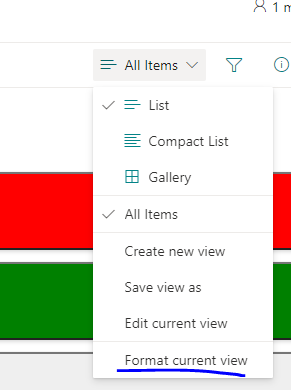
Select your view where you want to apply conditional formatting  - Click on Format current View as shown in below screenshot.
Add below JSON code formatting snippet  and save it. 
{
"$schema": "https://developer.microsoft.com/json-schemas/sp/v2/row-formatting.schema.json",
"schema": "https://developer.microsoft.com/json-schemas/sp/view-formatting.schema.json",
"hideSelection": true,
"hideColumnHeader": true,
"rowFormatter": {
"elmType": "button",
"customRowAction": {
"action": "defaultClick"
},
"attributes": {
"class": "sp-row-card"
},
"children": [
{
"elmType": "div",
"style": {
"text-align": "left"
},
"children": [
{
"elmType": "div",
"attributes": {
"class": "sp-row-title"
},
"txtContent": "[$Title]"
},
{
"elmType": "div",
"attributes": {
"class": "sp-row-listPadding"
},
"txtContent": "[$Status]"
}
]
}
],
"style": {
"background-color": {
"operator": "?",
"operands": [
{
"operator": "==",
"operands": [
"Awaiting Approval",
"[$Status]"
]
},
"red",
{
"operator": "?",
"operands": [
{
"operator": "==",
"operands": [
"Ready to Deploy",
"[$Status]"
]
},
"yellow",
{
"operator": "?",
"operands": [
{
"operator": "==",
"operands": [
"Complete",
"[$Status]"
]
},
"green",
""
]
}
]
}
]
},
"width": "100%"
}
}
}


Result ;- your view will look like this,


What is Microsoft Azure ?

Let's understand the basics of Azure 


Azure is cloud computing platform it helps to build solutions to meet your business goals .

Azure supports -  

○ IaaS ( infrastructure as Service )
○ PaaS (Platform as service)
○ SaaS ( Software as Service ) 


How Azure works?

Microsoft azure is public and private cloud platform that helps developers and IT administrators to build deploy and manage their applications . Azure uses technology known as virtualization. Virtualization separates tight coupling between computer hardware and its OS using an abstraction layer called hypervisor. The Hypervisor emulates all the functions of real computer and it's CPU in a virtual machine optimizing capacity of the abstracted hardware it can run multiple virtual machines at the same time  and each virtual machines can run any compatible operating system such as windows, Linux.

Azure takes this virtualization technology and repeats it on massive scale in Microsoft data centers throughout the world each data center has mini racks filled with Servers and each servers include hypervisor to run multiple virtual machines  a network switch provides connectivity to all those servers one server in each rack run special peach of software called a fabric Controller  each fabric controller is connected to another special peace of software known as Orchestrator.


The Orchestrator is responsible for managing everything that happens in azure including responding to user requests . 

User makes a request using Orchestrator Web API the Web API can be called by many tools including user interface of the azure portal so when user makes a request to create virtual machine the Orchestrator packages everything that needed  picks the best server rack and send package request to fabric Controller once the fabric controller has created virtual machines the user can connect to it.  Azure makes it easy for developers, IT administrators to be agile when they build deploy and manage their applications and services .

Task never defined: serve SPFX upgrade

Problem - After upgrading spfx project you will see the problem when executing gulp serve. 

Solution -  upgrade gulpfile.js serve refrence.


Gulp version - 3.xxx

'use strict';


const build = require('@microsoft/sp-build-web');

build.addSuppression(`Warning - [sass] The local CSS class 'ms-Grid' is not camelCase and will not be type-safe.`);

build.initialize(require('gulp'));


Upgrade gulp v4.0xxx

 'use strict';


const build = require('@microsoft/sp-build-web');

build.addSuppression(`Warning - [sass] The local CSS class 'ms-Grid' is not camelCase and will not be type-safe.`);

var getTasks = build.rig.getTasks;
build.rig.getTasks = function () {
  var result = getTasks.call(build.rig);

  result.set('serve'result.get('serve-deprecated'));

  return result;
};

build.initialize(require('gulp'));

Friday, 18 August 2017

Retrieving Access Request Email from SharePoint Site

The access request feature allows users to request access to site that they do not currently have permission to see. As a site owner, you can configure the feature to send you mail when someone requests access to a site for approval.

use the below code find out the  Access request owner using below JSOM code  


function getAccessRequestOwner() {
    var clientContext = SP.ClientContext.get_current();
    this.oWeb = clientContext.get_web();
    clientContext.load(this.oWeb, 'RequestAccessEmail');

    clientContext.executeQueryAsync(
        Function.createDelegate(this, this.onQuerySucceeded),
        Function.createDelegate(this, this.onQueryFailed)
    );
}

function onQuerySucceeded(sender, args) {
    console.log('RequestAccessEmail: ' + this.oWeb.get_requestAccessEmail());
}
   
function onQueryFailed(sender, args) {
    alert('Request failed. ' + args.get_message() +
        '\n' + args.get_stackTrace());
}


//Call function
getAccessRequestOwner();

Monday, 14 August 2017

SharePoint Online admin role


To help you administer SharePoint Online, you can assign one or more users to the SharePoint Online admin role. For a little background, here are each of the administrator roles available in SharePoint Online listed in order of the permissions hierarchy:
  • The Global administrator of the Office 365 portal is also a SharePoint Online administrator. When you purchase Office 365, a team site is automatically created, and the Office 365 global admin is included as the primary Site Collection administrator for that site. Keep in mind that you need to assign yourself a SharePoint Online license to access these services or you will receive an “Access Denied” message.
    • The SharePoint Online administrator, designated by the Global administrator, has access to the SharePoint Online admin center and can create and manage site collections, designate site collection administrators, manage user profiles, and more. The SharePoint Online admin also needs a SharePoint Online license. See more about this role’s key tasks below.
      • The Site collection administrator, which can be designated by the SharePoint Online administrator, has permissions to manage a site collection. A site collection can have several administrators, but only one primary administrator. The SharePoint Online administrator can assign permissions to the primary site collection administrator when creating a site collection, and can add more administrators for the site collection afterwards. Site collection administrators do not have access to the SharePoint Online admin center. They need SharePoint Online licenses to manage site collections.
Note: There is a separate administrator role called the Term store administrator, who can add or change terms in the term store (a directory of common terms you want to use across your organization). To learn more, see Assign roles and permissions to manage term sets.
Key tasks of the SharePoint Online administrator
Here are some of the key tasks users can do when they are assigned to the SharePoint Online admin role:

Reference – https://support.office.com/

Differences between SharePoint OnPrem vs SP Online


In this post we are going to explain the difference between SharePoint OnPrem Vs SharePoint Online.
  1.  Basic Differences
    SP On PremisesSP Online
    • The SharePoint server farm is within the corporate network.
    • The IT Support team maintains the SharePoint farm and regularly applies Microsoft patches and updates.
    • On premise, Active directory is used for authentication.
    • Full access to use and customize any SharePoint feature as needed.
    • Availability of Enterprise level services such as BCS, Performance Point, etc.

    • The SharePoint sites reside in the   Microsoft Data Centre (MDC).
    • Microsoft applies the patch regularly.
    • Microsoft’s SLA ensures 99.9%     availability.
    • Microsoft’s global network of data centers provides reduced latency and high network bandwidth.
    • Support for Client Side Object & App model.

  2. Feature Comparisons  – All the basic functionality of SharePoint remains the same, there are a number of significant feature differences between On Premises and Online
    CategoryOn PremisesOnline
    Product FeaturesSupport for enterprise feature, Office web App (OWA) needs to be installedMissing or limited features, pre-configured features
    Infrastructure deployment & maintenanceIT Support Team to deploy/manage farm, latest updates or patches not always deployed.Microsoft manages the environment and ensures all updates and patches are deployed.
    Business Continuity (BC)Dependent on internal capabilities.Microsoft built-in redundancy and failover for data centers, but does not provide end user backups or data recovery.
    Cost InvolvedPurchase/Maintain Hardware, Software licenses etc.Annual subscriptions for Office 365 Plans billed on a per user basis.
    Customization OptionsFull support for server side code and client side code, App usage from OAC and SASFull Support- Client Side, Limited Support-Server side, can use Apps from OAC or SAS
    Compliance StandardDependent on internal capabilities.Verified by third party authors
    Information SecurityDependent on internal capabilities.Information in MDS meets industry-specific security standards
    Storage needsExpensive storage devices, Site Collection -More than 100GB, Scalable Storage SizeCheap storage cost, Site Collection- up to 100Gb, Maximum content in single tenant -O365 plan based
    DevelopmentFull trust solution can be deployed- Features in farm solutions can have scope as wide as the site collection, web application, or whole farm Public facing website with much of customization is possible Custom “Managed Path” allowed More control can be delegated to power usersFull trust solution and Sandbox cannot be deployed- Allowed More control cannot be delegated to power users and maxim privilege level is Site Collection level.

  3. Technical Comparisons –
     ServicesOnlineOn Premises
    SearchLimited access to queryFull text Query
    InfoPath Form ServicesOnly in E3, E4 and K1 plansRequired License to use InfoPath Form Services
    Claim Bases AuthenticationN/ACan use SQL , LDAP and AD authentication
    Managed AccountsN/AProvides a Managed Account to user at access the SP Admin Services
    Usage reporting and LoggingN/AProvides LOGS and Reporting to check the exceptions and System Report.
    Alternate Access MappingN/AProvides a map requests where the URL of a Web request received by Internet Information Services (IIS) differs from the URL that was typed by a user
    SharePoint Health AnalyserN/ASite collection pre-upgrade health check examines a site collection and then generates a report listing ay potential upgrade issues and how to address the issues

  4. SharePoint OnPrem Prons and Cons
    ProsCons
    Control PerformanceCost of internal resources (staff, hardware, software, etc)
    Scale Up and Scale OutAdditional Geographic redundancy costs
    Reduces Bandwidth requirementsDisaster Recovery dependent on internal capabilities
    Fully CustomizableScale Up/Out Cost( SW/HW)
    Full Server and SQL DatabasePatching Servers/farms
    Migrate as NeededExtra configurations for External Collaboration
    Seamless Single Sign on with Corporate Active Directory
  5.  SharePoint Online Prons and Cons
    ProsCons
    Uptime 99.99%More ISP Bandwidth
    Multiple Data centersLimited Customizations
    Geographically redundantPossible Storage Costs
    Shorted release cycleRecovery SLAs
    Managed Services (SaaS)No Server access
    Pay as you go (Low Cost)
    Reduced impact on internal IT resources
    Scalability

Thursday, 16 March 2017

Creating Client Web Part in SharePoint Online


Creating Client Web part in Office 365


Hello Everyone in this article I am going to explain how to create webpart in office 365 using JavaScript object model in this article you would be able to see the walk through of the SharePoint Hosted Add-Ins and the process of creating client webpart and custom action.

1.      Open the visual studio - Create SharePoint Hosted App Project Select SharePoint Hosted Add-Ins enter name click Ok


2.       So now enter your site name where you wanted to debug your App and select the hosting environment type so I am, going the select SharePoint Hosted Add-Ins


3.       Now Click on next button enter your valid credential to connect with your SharePoint Online site


Once you complete everything click on finish. It will create SharePoint Hosted App Project. Now follow the next step to add client webpart in your project

       Right click on project – Click add new Item choose Client Webpart(HostWeb)


Now it will open the next wizard here you can enter the new page name where you wish to show the app part in my case I am selecting the existing page from solution


Now click on the finish client app part will be added in the solution as shown below

Now let’s create a custom property in client app part. I have added six properties in my webpart as shown below

To read the values from properties I am going the write a custom JS script to get the values


after reading all the values from webpart I am going to create a custom action dynamically on the configured list.

 After writing your complete code and your business logic deploy your app to the SharePoint online and install in your environment.

Follow the below steps to add and configure your webpart on the page

1.       Click on edit page -click on apps selected your recently deployed app from app gallery and add it to the page.

2.       Now configure your custom properties which you have created and click on Apply/Ok


After the above configuration you can see see the custom action created on your list as shown in below screenshot.


Click on the above ribbon buttons – below screen will appear .


Hope this article will help in creating client webpart in SharePoint Online.

Feel free to drop your comments below .


Happy Coding !!


Thursday, 22 December 2016

Adding Sandbox Solution in Solution gallery using power shell

In this post I am going to share below code the add and install the partial trust solution in solution gallery using Powershell script.


$WebApp= Get-SPWebApplication http://sharepointtest:5555
$site = Get-SPSite -WebApplication $WebApp -Limit All
$Sites = Get-SPSite -Limit All
foreach($Site in $Sites)
{

Add-SPUserSolution –LiteralPath "{WSP Path}" –Site $Site.Url

Install-SPUserSolution –Identity "{WSP Name}" –Site $Site.Url

}

Tuesday, 20 December 2016

"Upgrade Required" Status in SharePoint 2013 Central Administration Servers in Farm


Problem -
 

"Upgrade Required" error message in SharePoint 2013 server farm?

Background –


After the service pack installation was completed I notice that “Upgrade Require” message was

appearing in Central admin server farm as shown in below screenshot.


I run the configuration wizard right after the installation of Service Pack but the farm status 

continues to show “upgrade required” 

Resolution -


   1. Find out the error in the upgrade log.
   2. To know what objects needed upgrade in the farm. I ran stsadm.exe -o      localupgradestatus after running this I got the list of object and summary out of them filter the “need to upgraded” record.

 <object>
    <name>Microsoft.SharePoint. Administration.SPIisWebSite</name>
    <type>Microsoft.SharePoint. Administration.SPIisWebSite</type>
    <level>5</level>
    <status>Needs Upgrade</status>
 </object>

[25] content database(s) encountered.
[0] content database(s) still need upgrade or cannot be upgraded.
[30] site collection(s) are contained in the content databases.
[0] site collection(s) still need upgrade.
[40] other objects encountered,
[1] of them still need upgrade or cannot be upgr
aded.


     I tried to ran the PSConfig.exe   


3. I tried to ran the PSConfig.exe -cmd upgrade -inplace b2b -force -cmd applicationcontent -install -cmd installfeatures But it was getting failed every time with the following error message


An exception of type Microsoft.SharePoint.Upgrade.SPUpgradeException was thrown.

Additional exception information: Action 15.0.1.0 of Microsoft.SharePoint.Upgr
     ade.SPIisWebSiteWssSequence failed. 

    4. I also ran the below script that loops through the web applications and pings each one confirming that web application is exists or not 


          $webapps = Get-SPWebApplication
           foreach($web in $webapps)
            {
             ping $web.url.replace(“http:”,””).replace(“https”,””).replace(“/”,””) -n 1

            }
 

    5. I found that few of the web applications removed from SharePoint Central admin but it was still appearing in IIS.


I tried to delete the blank web application from SharePoint Central admin UI as show in      below screenshot 


but I was not able to delete it from UI and received the below error.


An object of the type Microsoft.SharePoint. Administration.SPIisWebsiteUnprovisioningJobDefinition named "Unprovisioning SharePoint - 47017" already exists under the parent Microsoft.SharePoint.Administration.SPWebService named "". Rename your object or delete the existing object
        
I used below PowerShell script to delete the orphan Web Application object


      Get-SPTimerJob | where {$_.name -like "*SharePoint - 444*”} |ft id,name

      copy the Timer Job Id

      $job = Get-SPTimerJob -Identity <paste the id here>

      $job.Delete()


After that I deleted the web application successfully using below PS command


 Remove-SPWebApplication http://sharepoint40/ -Confirm  -DeleteIISSite    -RemoveContentDatabases


       After removing all the unused/orphan web application site and application pool from IIS.
   I ran the below PS Script again

PSConfig.exe -cmd upgrade -inplace b2b -force -cmd applicationcontent -install -cmd installfeatures


And finally, “Upgrade Require” message disappeared !